

The panel
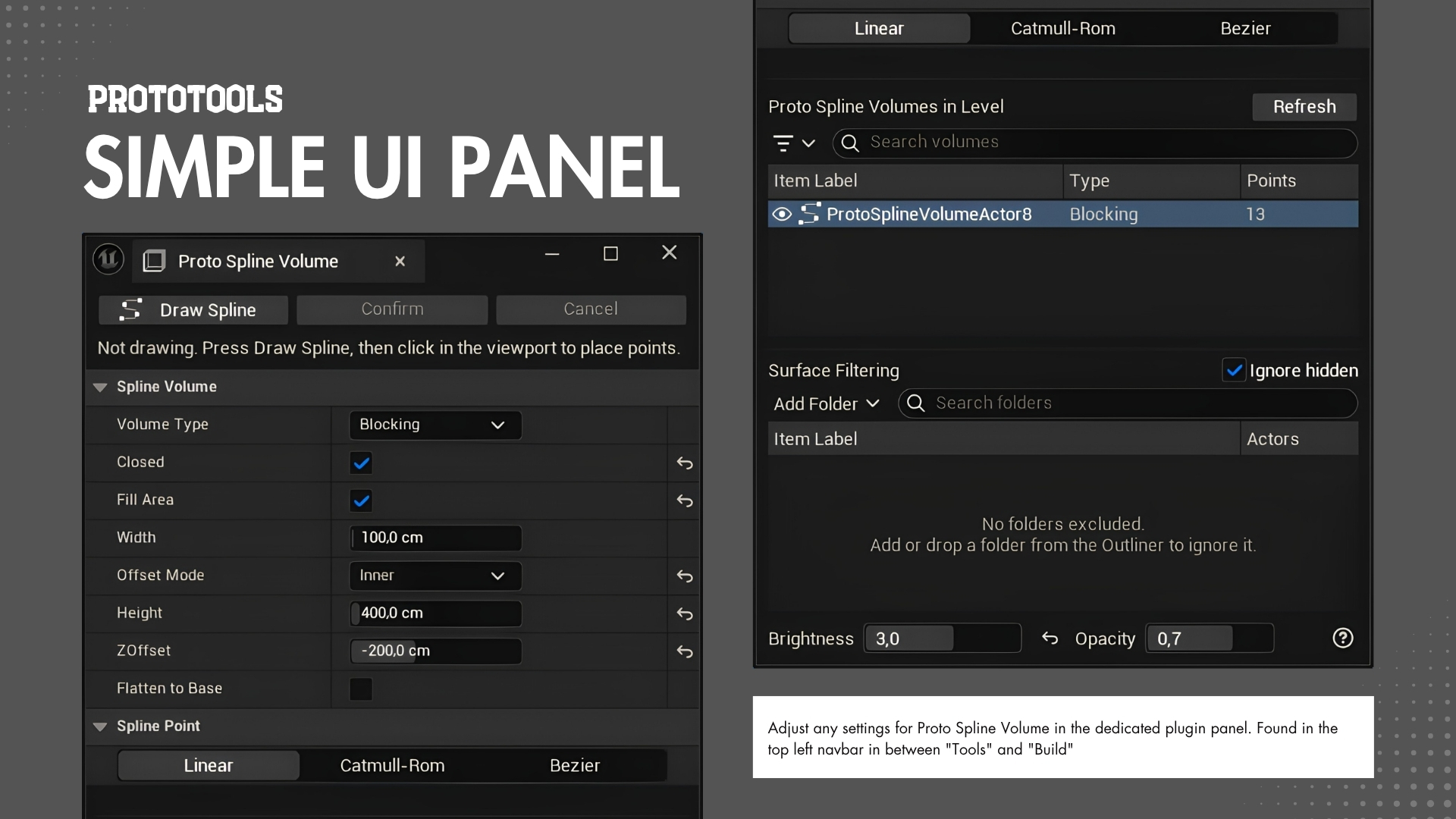
Open it from Proto Tools ▸ Proto Spline Volume (also under Window, Level Editor category).
Controls
- Draw Spline / Confirm / Cancel with live status text.
- Settings for the draw tool or the selected volume, plus a Spline Point section for the selected point's smoothing.
- Volume list with sortable Item Label / Type / Points columns, search, inline rename (double-click), 👁 eye icons for per-volume visibility, and double-click to frame a volume in the viewport.
- Filter funnel (left of the search box) shows or hides every volume of a type in the scene.
- Surface Filtering section below the list — the Outliner folders the draw cursor traces through, plus the Ignore hidden toggle. See Surface filtering.
- Multi-select volumes to edit their settings together.
- ? button (bottom right) lists every control and hint.
Display dials

The row across the bottom of the panel affects how volumes look in the editor, level-wide. Neither setting touches a packaged game, and both are remembered per project.
| Dial | Range |
|---|---|
| Brightness | 0.05–20, slider 0.1–5 |
| Opacity | 0–1 |
Brightness multiplies the emissive strength of every volume in the level so they stay readable under your lighting — dark scenes wash volumes out, bright ones drown them.
Both start at the value the plugin's material collection ships with, and a reset arrow appears beside a field once you've changed it. Resetting clears the saved override rather than writing the old number back, so a future plugin update that retunes the defaults reaches you.
Selection syncing
Selection is synced both ways with the level, and the list updates itself as volumes are added, deleted, duplicated, or undone.