

Surface filtering
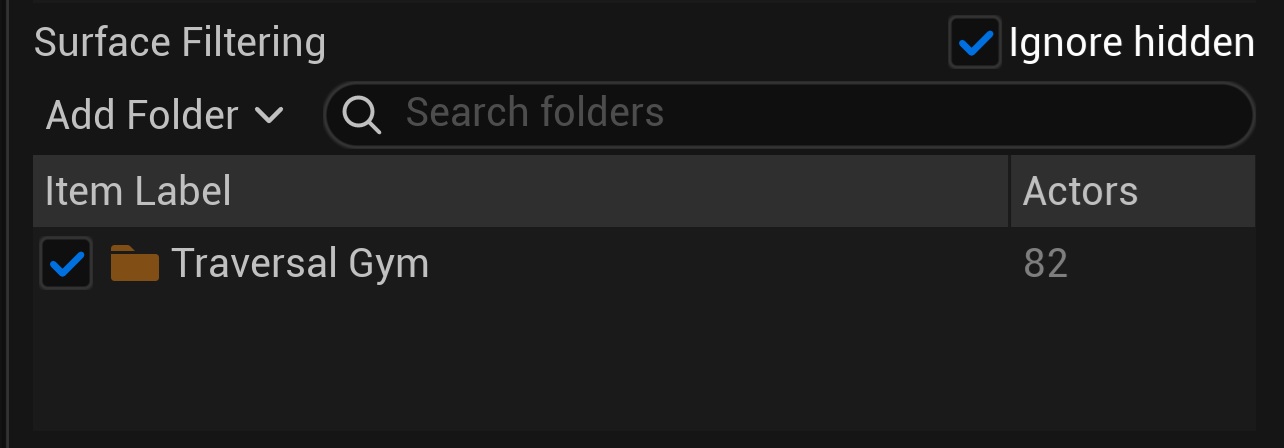
Drawing places points wherever the cursor hits geometry. In an empty blockout that's the floor; in a dressed level it's whatever prop, foliage cluster, or collision blocker happens to be in the way.
Surface Filtering is the fix: list the Outliner folders the cursor should trace through, and points land on the surface behind them instead. It sits at the bottom of the panel, under the volume list.
The setting is global — it applies to every draw, not per volume — and it's saved per project, so a level's exclusions are still there tomorrow.
Ignore hidden
The checkbox beside the Surface Filtering header. On by default.
With it on, the cursor traces through anything hidden in the editor: actors and Outliner folders switched off with the 👁 eye icon, hidden layers, and hidden sublevels. Without it, hiding an actor still leaves its collision in the way, and points snap onto geometry you can't see.
Hide first, exclude second
For a one-off, hiding the actor in the Outliner is enough — Ignore hidden takes care of the rest. Reach for the folder list when you want the geometry to stay visible while you draw through it.
Excluding a folder
Two ways to add one, and both take subfolders with them:
- Add Folder lists every Outliner folder in the level, including folders that only contain other folders. Ones already on the list are left out; when everything is listed it reads "No folders to add".
- Drag folders from the World Outliner onto the list. The drop area tints while a folder drag is over it. Multiple folders in one drag all land.
Each row shows the folder path and an Actors count — how many actors that exclusion currently covers, subfolder contents included. The count is live: move an actor into the folder in the Outliner and the number follows.
Filter by folder, not by actor
This is why the list takes folders rather than actors. A Props or Foliage folder keeps working as the level fills up — new actors dropped into it are excluded the moment they land, with no housekeeping.
Turning an exclusion off without losing it
Every row has a checkbox. Uncheck it and the folder stays on the list but stops filtering — the cursor can land on its actors again. Check it to switch the exclusion back on.
That's the difference between the checkbox and removing a row: the checkbox is for "I need to draw on the props for a minute", removal is for "this folder was never meant to be here".
Removing folders
Select one or more rows, then either press Delete or right-click and choose Exclude Selected Folder. The list is multi-select, so a shift-click range goes in one action.
Use the Search folders box to narrow a long list. It filters the display only — a folder hidden by the search is still excluded.
What the cursor actually does
Worth knowing, because it explains a behaviour you'd otherwise report as a bug:
- The trace reports every surface along the ray, not just the first one, and the nearest paintable hit wins. Excluded or hidden geometry therefore can't mask a surface behind it — a ceiling you've excluded doesn't stop you drawing on the floor beneath it.
- Points land on rendered polygons, not on simplified collision hulls, so a point sits where the surface looks like it is.
- Nothing hit at all falls back to a horizontal plane at the height of the last point you placed.
Where the settings live
Per project, in your editor's per-project settings under a ProtoSplineVolume section — the same place the panel's Brightness and Opacity dials are kept. Enabled folders, switched-off folders, and the Ignore hidden state are stored separately, so both the list and its checkboxes come back as you left them.
Per project, not per level
One list serves the whole project. Folder paths are matched by name, so a Props folder in one level and a Props folder in another are both covered by a single entry — usually what you want, occasionally a surprise.
Next
- The panel — the volume list the filtering section sits below
- Getting started — the drawing controls themselves